 KidGuard
- v0.9.48
- Android 8+
- Free
- Open source
Manage your child's phone from a browser
Set daily limits, block apps, see where your child is. No account, no server in between: the rules run on the child's phone.
The parent app alerts your own phone the moment the child presses SOS, asks for more time or trips an alert. The web page cannot do that.
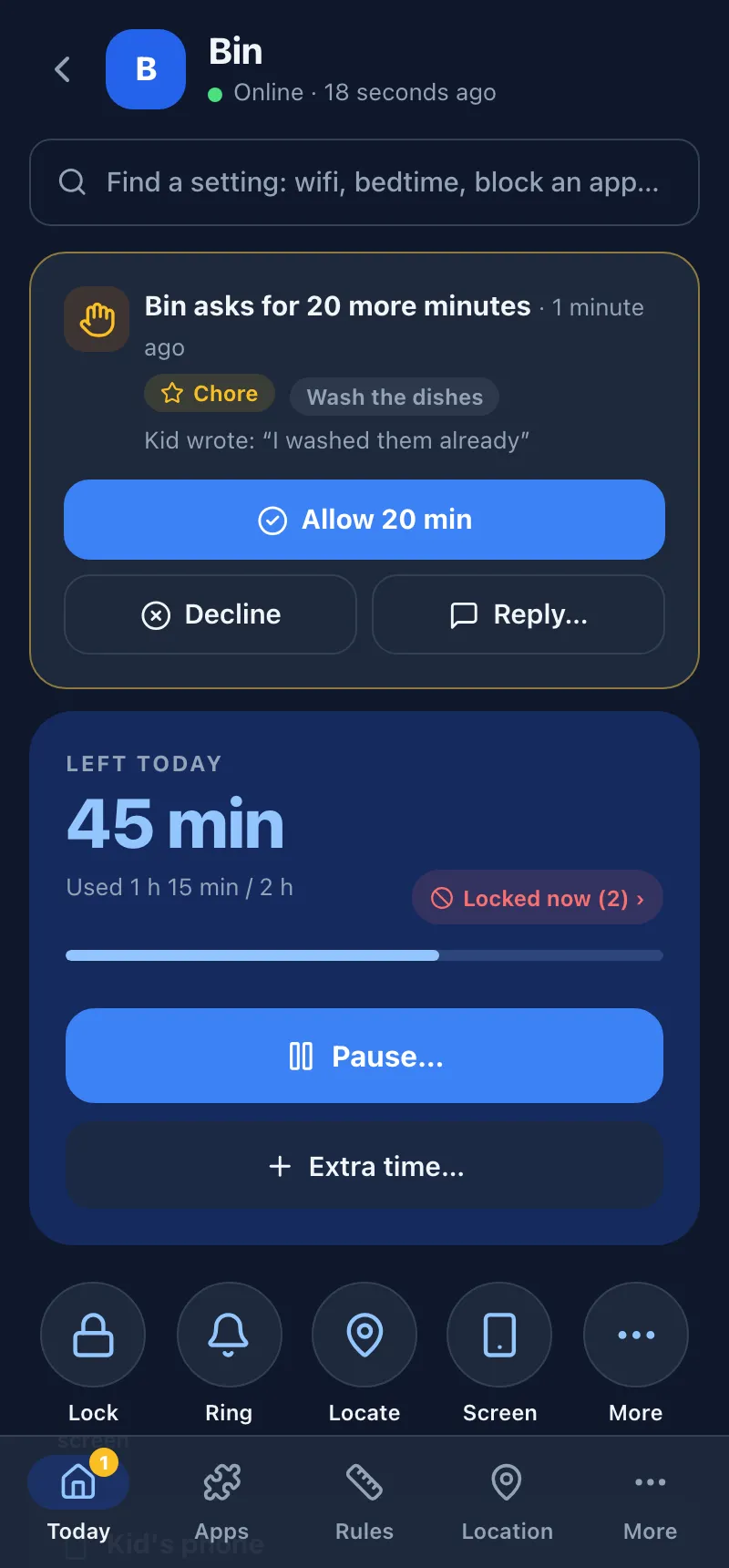
http://192.168.1.23:8770Two devices, nothing in between
KidGuard becomes the phone's Device Owner (the Android role for work phones), so it can lock apps and stay installed, with no root.
Install on the child's phone
One APK file, five ways to set it up.
Open the parent page
On the same Wi-Fi, scan the QR on the child's phone.
Set the rules
The phone applies them at once, even offline.
Enough for everyday use
All in the current release, no paid tier. See details
Time
- Daily limit
- Per day or per weekday, then locked.
- Bedtime, school hours
- Per-day windows, with a heads-up.
- Pause now
- 30 minutes, 1 hour, or until 6 am.
- Ask for more time
- With a reason, or earned with a chore; works even at bedtime.
- Unlock code
- 6 Authenticator digits, works offline.
- Languages
- English and Vietnamese, switch in the app and on the page.
- Rule templates
- School day, Weekend, Holiday...
Apps
- Per app
- N minutes, blocked or always allowed.
- App groups
- A shared limit or allowed hours for a group.
- New apps
- Locked until you approve them.
- Clean-up
- Hide unused preinstalled apps, clear app data, see heavy apps.
- Updates itself
- From GitHub, SHA-256 checked.
Kid home screen
- Own launcher
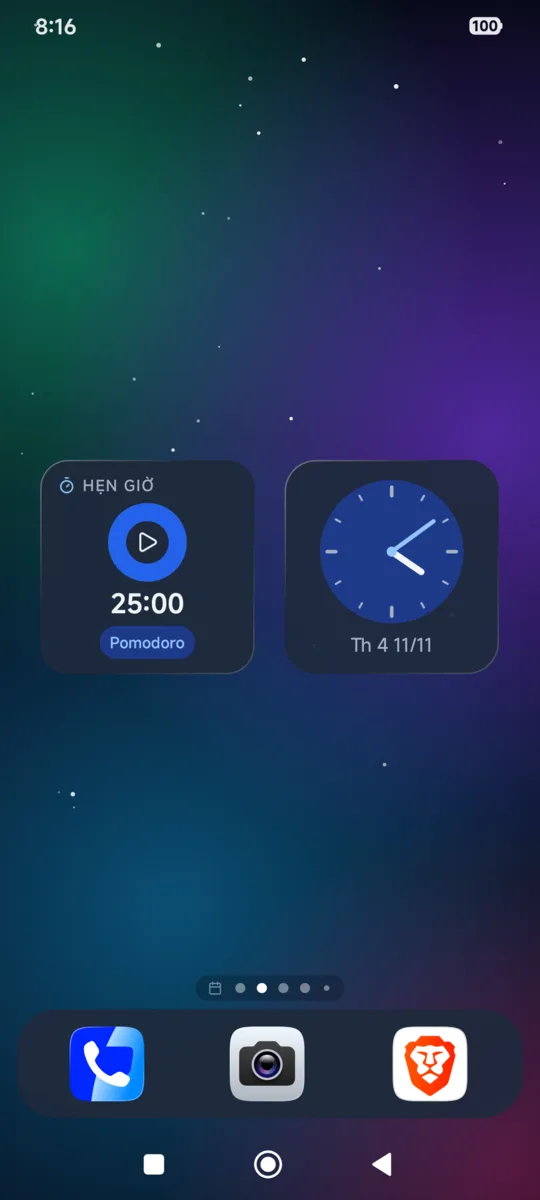
- iPhone-style: hold for a menu, drag to make folders, minus badge to remove, App Library on the last page. Locked apps are dimmed. Smooth on cheap phones too.
- Widgets
- Clock, calendar, homework, notes, battery, apps used today; other apps' widgets too.
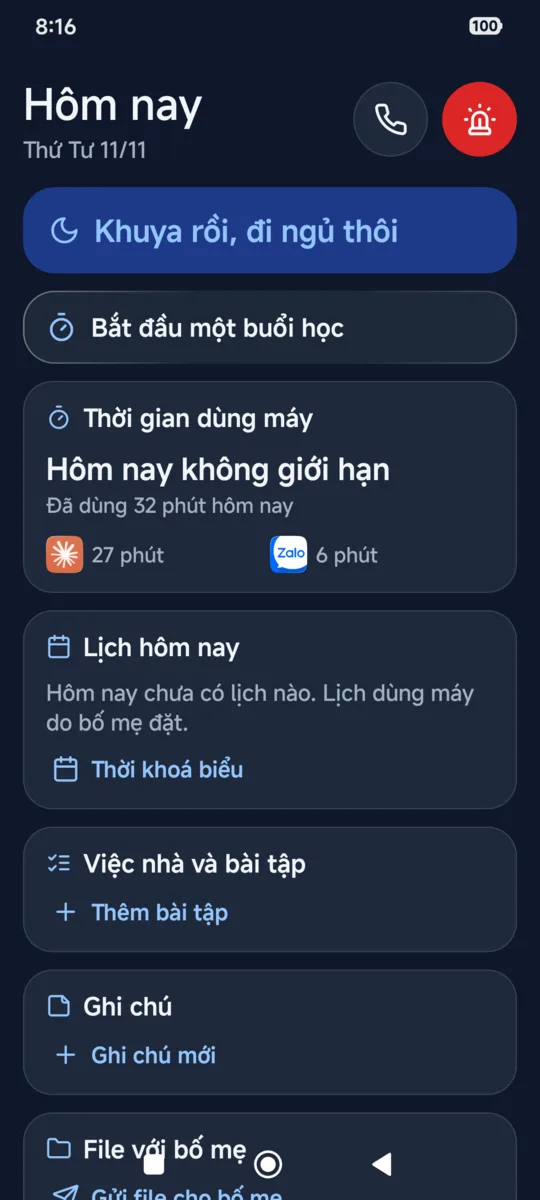
- “Today” page
- A greeting, the class now, time left, chores, tomorrow's subjects, files both ways with the parents. The kid picks the cards, or turns the page off.
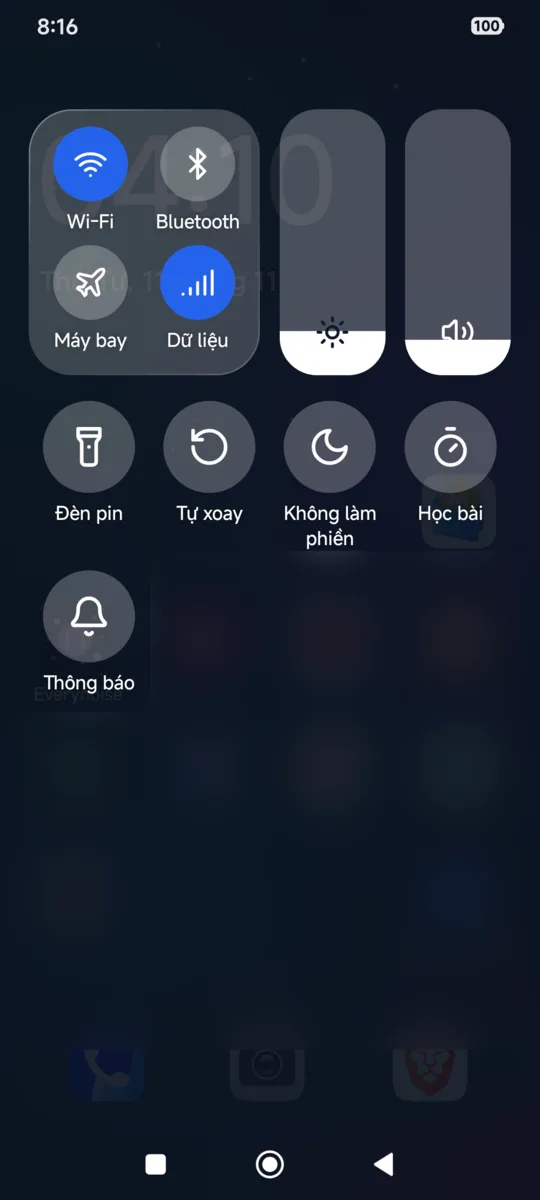
- Control center
- Swipe down: Wi-Fi, Bluetooth, torch, sound, brightness, start studying.
- Study mode
- Only study apps on the home screen, Do Not Disturb on.
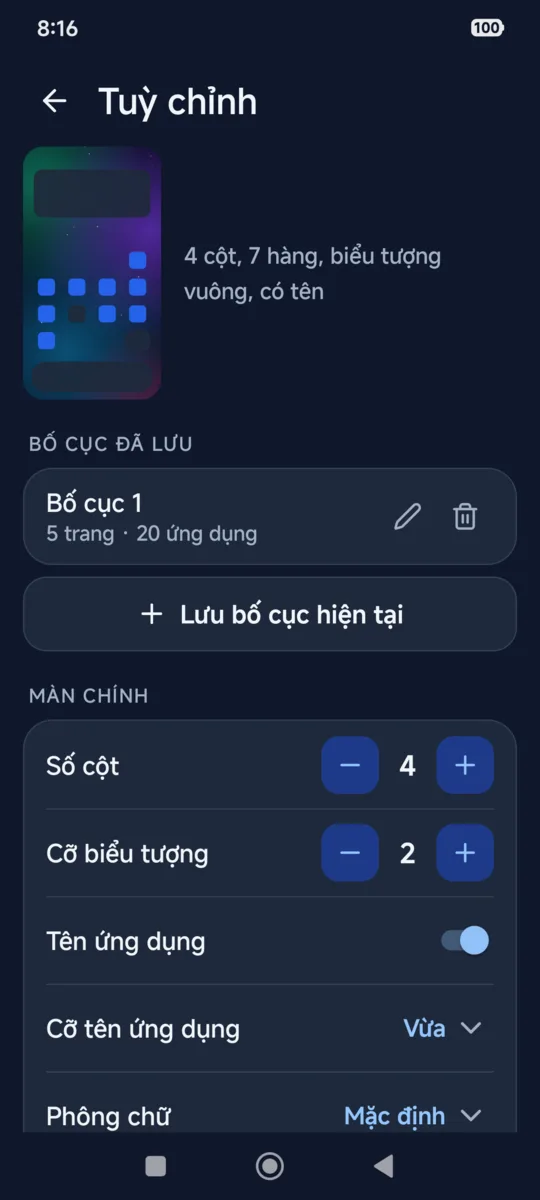
- Customize
- Wallpapers, icon size and shape, label size, light/dark. Save layouts, switch the whole home in one tap.
- Hidden apps
- The kid sees which apps are hidden and why.
Location and safety
- Location
- Locate now, 7-day history on a map.
- Zones
- Told when the child arrives or leaves.
- SOS
- A red button that sends the location.
- Wrong-PIN photo
- From the 3rd wrong PIN, a front camera photo goes with the alert.
- See the screen
- Live, tap and type (Android 11+).
- Listen around
- Up to 10 minutes, the phone always beeps.
- Alerts
- Zones, low battery, new apps, clock changes. Quiet levels, silent by default.
- Lost mode
- Relocks, shows your number, locates and rings.
Looking back
- History
- 7 days, weekly report, all kids.
- The child's rules
- Their rules, and what parents changed.
Holding firm
- Tamper-proof
- Blocks uninstall, Safe Mode; safe DNS.
- Factory reset protection
- Needs your Google account after a reset (Android 11+).
- Commands
- Lock the screen, ring, message, restart.
- Undo everything
- Tap Gỡ quyền quản lý (remove management).
Real screenshots
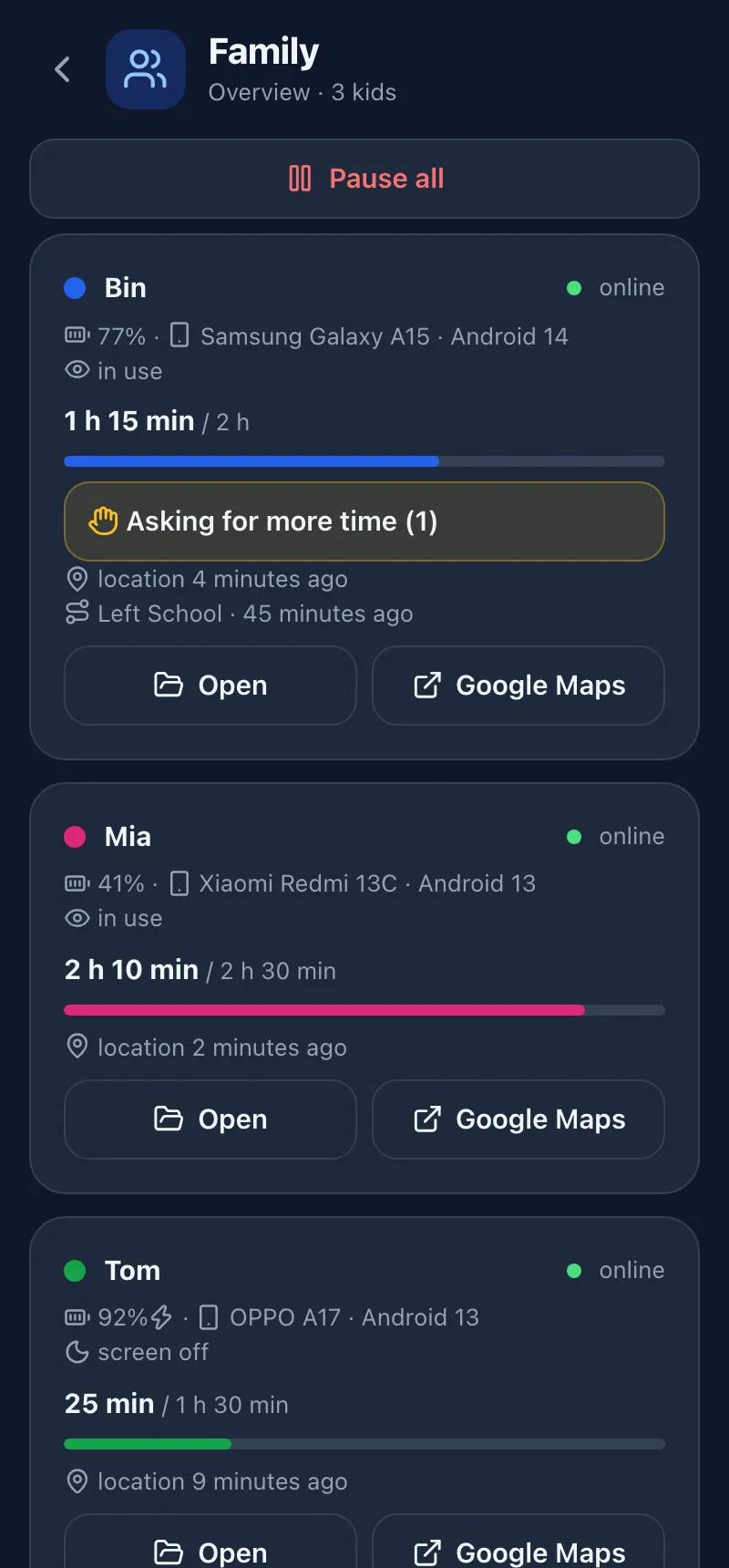
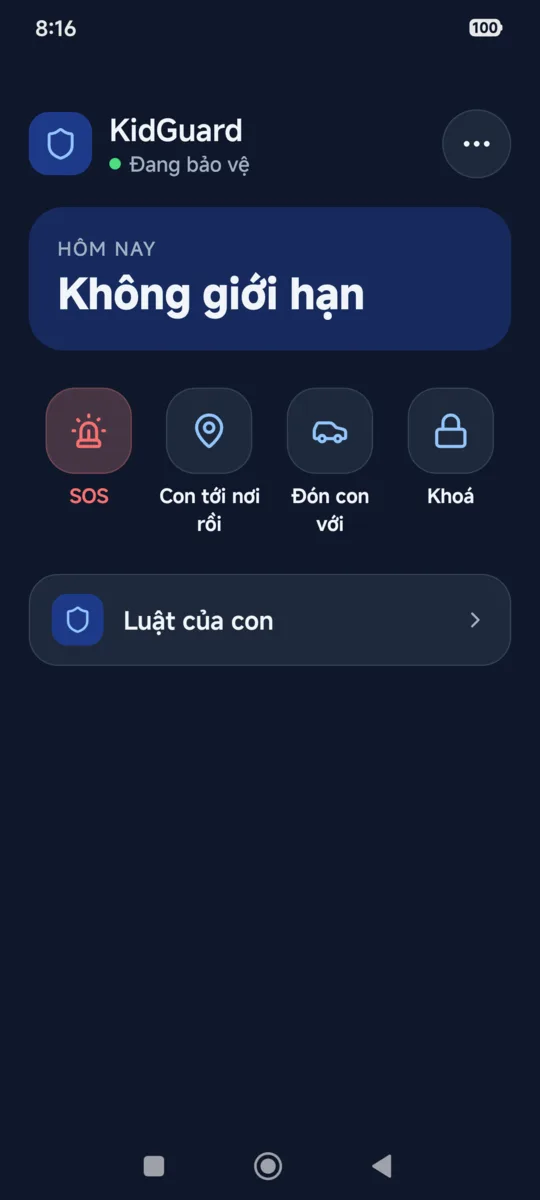
Real app screens; the parent page uses sample data, the kid shots are a POCO phone running KidGuard as its home screen.
Parent page
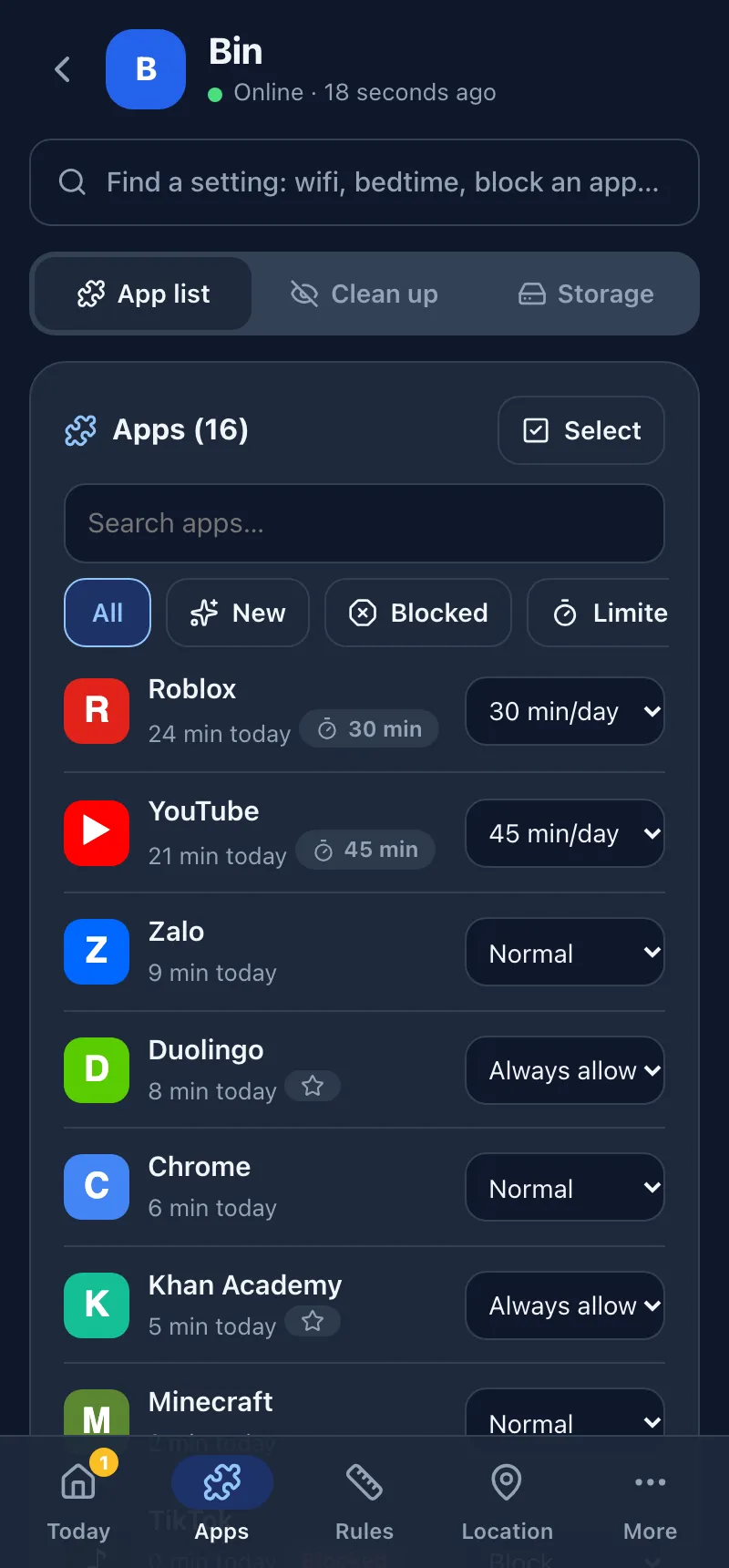
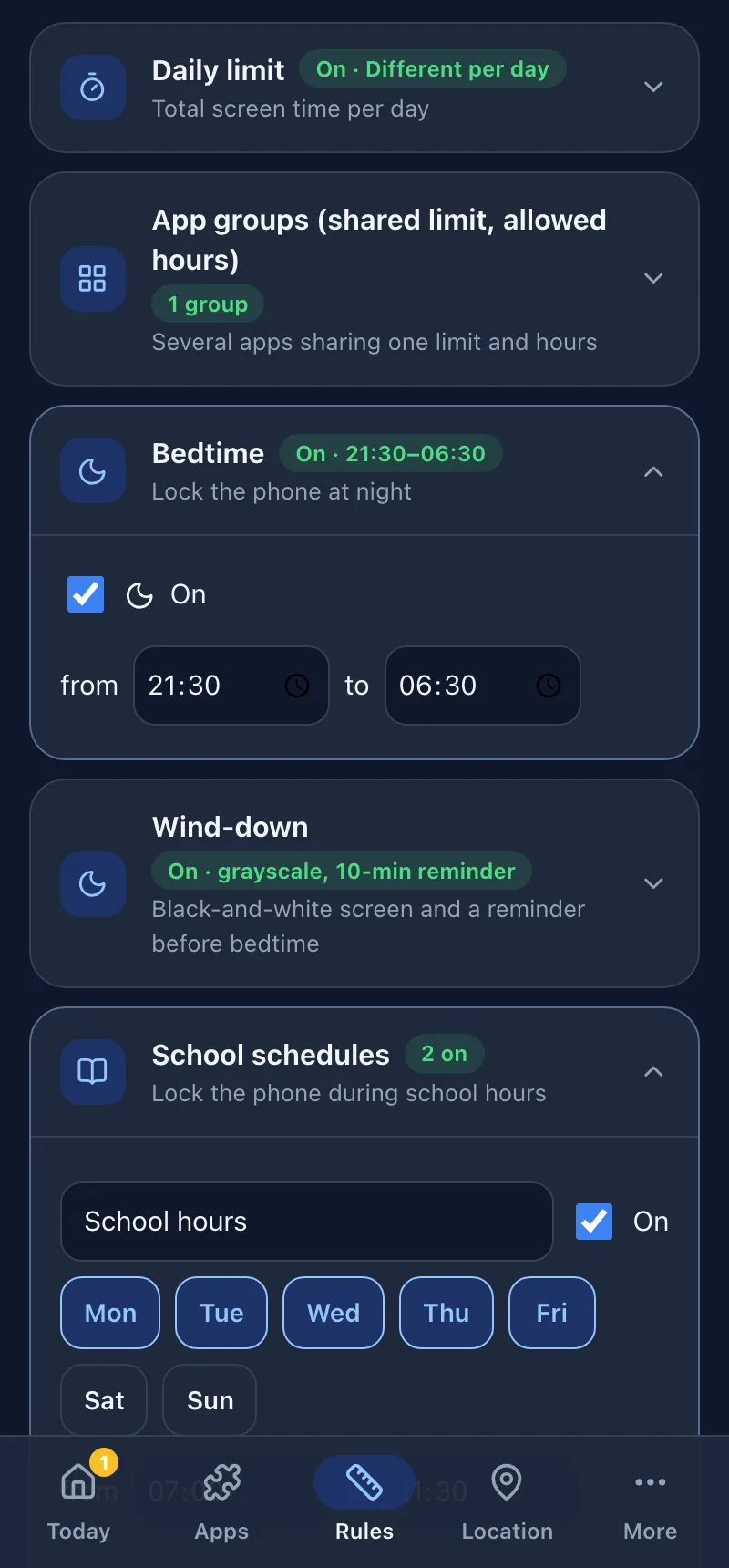
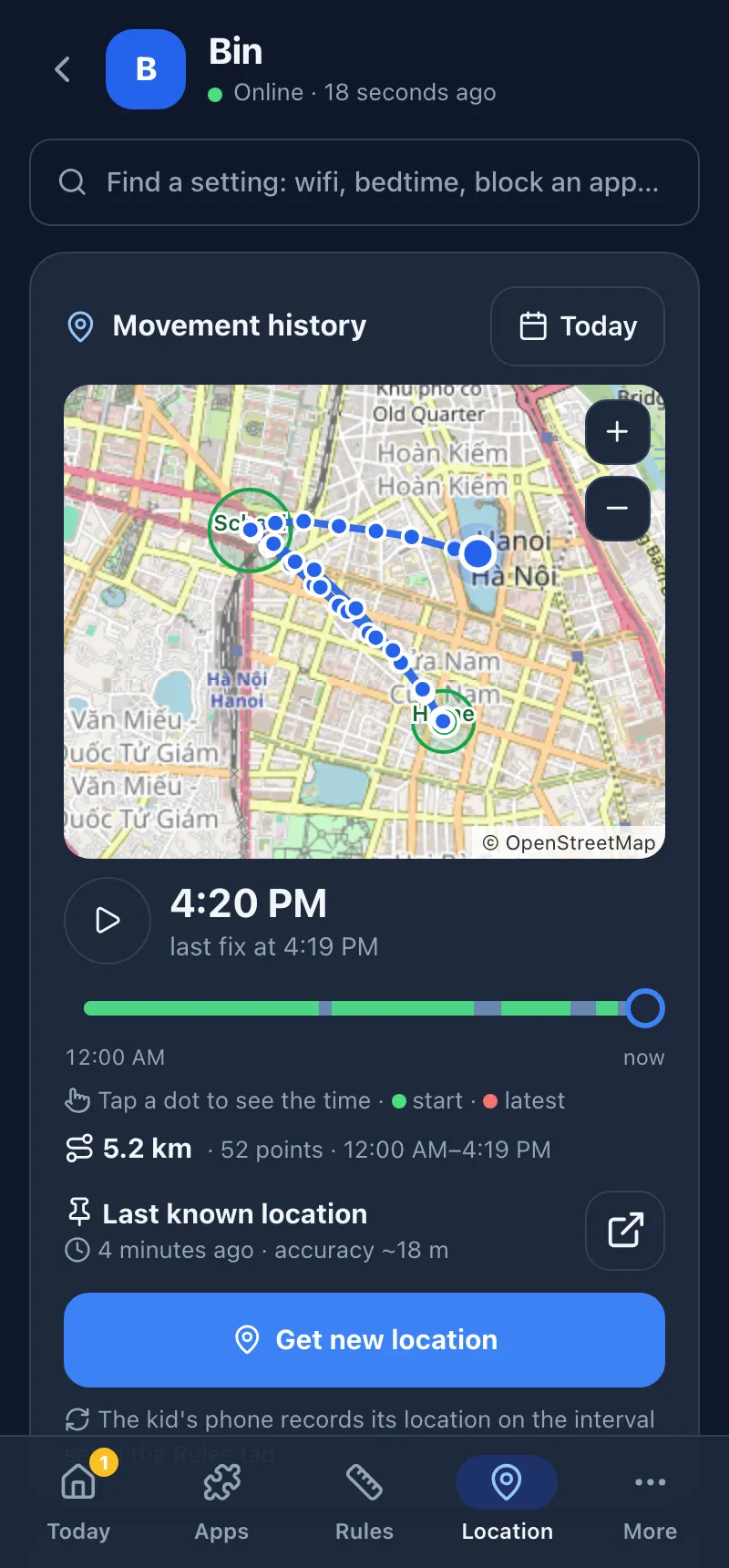
On the kid's phone (Vietnamese UI)
Which feature needs what
Before setup is finished the parent page still opens as a preview; features missing a permission are dimmed and say what they need.
| Feature | Needs |
|---|---|
| Preview the parent page, edit rules | Nothing installed |
| Kid home screen, widgets | KidGuard set as the home app |
| App blocking, time limits, usage stats | Accessibility + Usage access |
| Location, zones, SOS | Location permission + notifications |
| Live screen view and control | Accessibility (Android 11+) |
| Clean-up, uninstall protection, home screen lock, DNS filter | Device Owner |
| Remote control, alerts | Paired with a parent phone |
Without Device Owner KidGuard runs in basic mode: a locked app is sent back to the home screen. In the parent page, Settings has a Features & permissions list showing what the kid's phone still lacks.
Compared with Google Family Link
Where KidGuard wins, and where it loses.
| KidGuard | Family Link | |
|---|---|---|
| Accounts | None needed | Google, for parent and child |
| Data | On the phone | Google's servers |
| Live screen | Yes (Android 11+) | No |
| SOS, chores | Yes | No |
| Setup | Harder, a Device Owner step | Play Store, minutes |
| Language | English, Vietnamese | Many languages |
| Support | One author, GitHub |
Five ways to install
Install the APK and open it: the launcher, Dọn máy, the on-device parent page and the preview already work. Only Device Owner (A-D, strongest, optional) needs the phone accounts (Google, Samsung…) removed first, sign back in after; app accounts (Zalo, Facebook…) are kept. Step-by-step guide
On the phone itself Recommended
Android 11+, Wi-Fi. Tap Cài đầy đủ không cần máy tính (Android 11+); it sets itself up over Wireless debugging.
Scan a QR code
New or factory-reset phone: tap the welcome screen 6 times, scan the QR.
Computer and USB cable
Open the installer page in Chrome or Edge, no adb needed.
Command line
scripts/setup.shorsetup.ps1on macOS, Linux, Windows.Basic mode Weaker
Any Android 8+, accounts stay: follow the To do list. Safe Mode stops the blocking.
Then scan the QR on the child's phone to open the parent page, and set a PIN. Xiaomi, Oppo, Vivo, Samsung: also tap Cài đặt pin / tự khởi động (battery / autostart).
Blocked by Play Protect? Pause Play Protect while installing.
- On the child's phone open Play Store → tap your avatar → Play Protect.
- Tap ⚙ → turn off Scan apps with Play Protect.
- Install and set up KidGuard.
- Turn Play Protect back on.
QR setup is not affected (the phone downloads the app itself).
When you are out
At home the page connects straight over Wi-Fi. Away: the relay is already on, or add one of the free options below.
Parent app (Android): tap Thêm máy của con (add the child's phone) and get SOS, more-time requests and alerts wherever you are. Get the parent app
Child on an iPhone? There is no KidGuard for iOS, use Screen Time and Find My.
Before you install
Can the child uninstall KidGuard?
Not from Settings. A factory reset from the hardware keys still works, and the parent page then shows disconnected.
Does it need root?
No. KidGuard uses Android's built-in Device Owner role, with no system modifications.
Does it work on older Android?
Android 8 and up. Live screen and the on-the-phone install need Android 11+.
Is any data sent anywhere?
Not by default: the parent page is served by the child's own phone over home Wi-Fi. No accounts, no ads, no analytics.
Does the child know they are being managed?
Yes, on purpose: the child can see their own rules and a log of what the parents changed. KidGuard is only for a parent managing their own minor child's phone.
Can the DNS filter cut off my child's Internet?
No. If the filter fails for 90 seconds, KidGuard falls back to normal DNS and the parent page says why.
Why do some apps show a black screen?
Apps that mark their screen as secure (banking and similar) appear black when viewed remotely.
Is it secure?
Each browser pairs with a 6-digit code on the child's phone, and pairing more needs the parent PIN. On home Wi-Fi the page is plain HTTP, so use it only on a network you trust.
Found a bug or have an idea?
Send it to GitHub Issues.
Try it on your child's phone tonight
Not for you? Gỡ quyền quản lý (remove management) puts the phone back.
Parent's phone
Get SOS, more-time requests and alerts as notifications: the web page cannot.
Download parent appJust the launcher
KidGuard Home: iOS-style home screen, App Library, Today page. No parental control, no special permissions, under 1 MB. Not needed on a phone with KidGuard: the launcher is built in.
Get KidGuard Home Also by the authorTV RemoteControl an Android TV from your phone or any browser.